Translator-Bridge for MetaModels
The Translator-Bridge integrates buttons for machine translation such as DeepL  directly into the editing mask of the Contao backend. With a single click, the extension
transfers the field content of the fallback language to the configured translation provider and
automatically enters the result into the translation field currently being edited.
directly into the editing mask of the Contao backend. With a single click, the extension
transfers the field content of the fallback language to the configured translation provider and
automatically enters the result into the translation field currently being edited.
More on the topic Multilingualism in MetaModels.
Note
The Translator-Bridge extension is still in fundraising and will only be released once
the target amount of currently 2,762.50 € is reached.
Early installation via the “Early Adopter Program” is possible —
see below
Currently DeepL is supported as a translation provider — both the free Free-Tier API and the Pro API. The extension is designed to be open, so additional providers (e.g. ChatGPT, LibreTranslate) can be added as custom Symfony services — see below.
The button only appears when:
a multilingual MetaModel is being edited,
the active editing language is not the fallback language, and
the attribute field is translatable and not read-only.
Note
As an option, translation can also be enabled for Contao content — see below
Prerequisites
as of MetaModels core 2.4
as of Contao 5.3.x
A valid API key from the respective translation provider (e.g. DeepL Free or Pro)
Installation via Contao Manager or Composer
composer require metamodels/translator-bridge
Configuration
After installation, the translation provider’s API key is stored in the Symfony configuration.
To do this, create or edit the file config/config.yaml in the project folder:
meta_models_translator_bridge:
    deepl_api_key: '%env(DEEPL_API_KEY)%'
The actual key is entered in the .env.local file (never directly in the YAML file, to prevent
it from being published e.g. via a repository):
DEEPL_API_KEY=your-deepl-key-here
Note
DeepL Free-Tier keys end with :fx and automatically use the free API endpoint
api-free.deepl.com. Pro keys without this suffix use api.deepl.com. The extension
detects the key type automatically.
Preferred Language Variants
For some languages, DeepL distinguishes regional variants — e.g. British English
(EN-GB), American English (EN-US), or Brazilian Portuguese (PT-BR). With the
preferred_language_variant setting you define which variant should be requested for a
target language:
meta_models_translator_bridge:
    deepl_api_key: '%env(DEEPL_API_KEY)%'
    preferred_language_variant:
        en: en-GB
        pt: pt-BR
The key is the target language code (as used e.g. in the mm_lang field or as the active
editing language), the value is the desired DeepL variant. The mapping applies exclusively
to the target language of the translation.
Note
Valid DeepL target language codes must be used. The complete list can be found in the
DeepL documentation.
An invalid value (e.g. en-BR) causes DeepL to reject the request with an error (HTTP 400).
After changing the configuration, clear the Symfony cache:
php bin/console cache:clear
Usage in a Record’s Input Mask
Once the extension is configured, a small button with the translation provider’s logo (e.g. the DeepL logo) appears next to each translated attribute field.
Clicking the button :
reads the content of the field in the fallback language,
sends it to the translation provider,
and enters the translated result directly into the current input field.
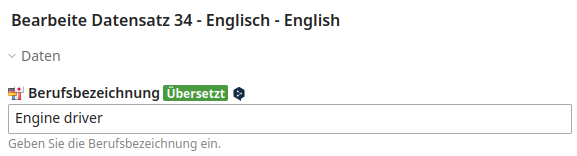
Fields with HTML content (e.g. TinyMCE or textarea fields with tags) are automatically recognized and translated using the appropriate HTML mode, so the markup structure is preserved.
Contao insert tags (e.g. {{link::123}} or {{env::request}}) are automatically replaced
by internal placeholders before translation and restored afterwards — they are therefore not
translated and remain unchanged in the result.
The result can be manually edited before saving — the extension never automatically overwrites an already saved value; it only populates the input field in the browser.
Tip
The keyboard shortcut Alt+T (macOS: Option+T) translates all translated fields in the current editing mask at once — without having to click each button individually.
Supported Attributes
The button is displayed for the following translated attribute types:
Translated content article — buttons appear in the popup window of the content element
Translating Content Elements in the Popup
The Translated content article attribute opens content elements in a popup window. Translation
buttons are also automatically displayed there next to all suitable fields. The target language
is read directly from the mm_lang field of the content element; the source language from the
MetaModel’s fallback language.
Note
A content element in the popup must be saved once after being newly created so that the language assignment can be established. After saving, the translation buttons will also be visible.
Suitable field types are: text, textarea, inputUnit, and listWizard. The
following rules apply:
Fields with a technical validation expression (
rgxp) are excluded if they contain non-linguistic content — e.g. date, email, phone, numbers, or language codes. Alias fields (rgxp=alias) always receive a button.ACE editor fields (
rte=ace|…) are only excluded if a code syntax is specified (e.g.ace|php,ace|css,ace|json). The syntaxesace|htmlandace|markdownare considered translatable content — corresponding fields (e.g. CE HTML or CE Markdown) also receive a button.
MetaModels Administration with Multilingual Inputs
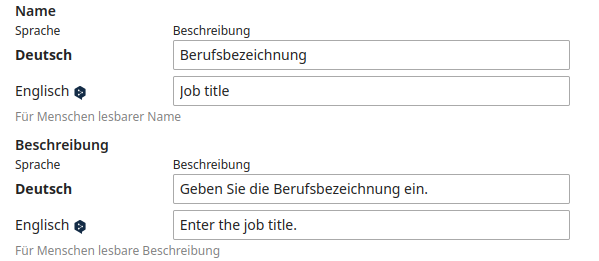
In the MetaModels administration — e.g. when creating or editing attributes — fields such as Legend or Description text appear as a multilingual table (MultiColumnWizard with language rows). There, the translation button is embedded directly in each non-fallback language row.
Clicking the button in a language row:
reads the value of the fallback language row of the same field,
sends it to the translation provider,
and enters the translated result into the input field of the respective target language row — the fallback row remains unchanged.
Tip
The keyboard shortcut Alt+T (macOS: Option+T) also translates all rows of such multilingual tables on the current page at once.
Translating Contao Content Elements
By default, translation buttons only appear in MetaModels attribute fields. For the
Translated content article attribute (attribute_translatedcontentarticle), the buttons are
always displayed — the content element popup window is automatically supported without any
additional configuration.
To extend the buttons to general Contao tables (tl_content with a standard article parent,
tl_article, tl_page), set the translate_contao flag:
meta_models_translator_bridge:
  deepl_api_key: '%env(DEEPL_API_KEY)%'
  translate_contao: true   # Default: false
Then clear the Symfony cache:
php bin/console cache:clear
Note
The source language is automatically determined from the Contao page tree: the extension reads the language setting of the root node marked as the fallback start point and passes it as the explicit source language to the translation provider. Buttons only appear in page or article trees that are not the fallback tree itself — there is nothing to translate in the fallback tree.
Display Character Usage
Providers that support it (e.g. DeepL) can display the current consumption of their character quota — in two places:
In the console, the command outputs <used> / <limit> (<percentage>):
php vendor/bin/contao-console metamodels:translator:deepl:usage
# Example output: 497 / 500,000 (< 1%)
The command name follows the pattern metamodels:translator:<identifier>:usage and is
provided automatically for every provider with usage support.
In the backend, the keyboard shortcut Alt+U (macOS: Option+U) on a translation
editing page opens a popup showing “<used> used characters of <limit> (<percentage>)”. The popup
closes via the ×, a click outside the popup, or the Esc key.
Note
The numbers are displayed with the thousands separators of the respective language. If
something has already been consumed but the rounded value is 0 %, < 1% is shown (instead
of 0%).
Error Messages
If a translation fails, a red notification message appears directly below the affected field. It disappears automatically after 8 seconds or when clicked. The technical message is additionally logged in the browser console.
Typical causes and messages:
No or incorrect API key |
DeepL: Authorization failed – please check the API key. |
Too many requests (rate limit) |
DeepL: Too many requests – please wait a moment. |
Translation quota exhausted |
DeepL: Translation quota exhausted. |
Server unreachable |
DeepL: Unable to connect to the translation service. |
Custom Translation Providers
The extension is extensible via a Symfony service tag. Custom providers implement the interface
MetaModels\TranslatorBridge\Api\TranslatorProviderInterface and are registered via the tag
metamodels.translator_provider:
# config/services.yaml
App\Translation\MyProvider:
    tags:
        - { name: metamodels.translator_provider }
The interface requires the following methods:
getIdentifier(): string— unique identifier (e.g.'myprovider')getLabel(): string— display name for the buttonisAvailable(): bool— indicates whether the provider is ready to usetranslate(string $text, string $sourceLang, string $targetLang): string— performs the actual translation; on failure, a\RuntimeExceptionwith a user-readable message must be thrown (no raw HTTP exceptions)getSupportedLanguages(): array— list of supported target language codes
Optionally, a provider can additionally implement the interface
MetaModels\TranslatorBridge\Api\UsageAwareTranslatorInterface. This requires the method
getUsage(): TranslatorUsage and thereby enables the console command
metamodels:translator:<identifier>:usage as well as the Alt+U display in the backend
for this provider (see
Display Character Usage).
So that the console command can be named correctly, the service tag must include the
identifier attribute (matching the return value of getIdentifier()):
# config/services.yaml
App\Translation\MyProvider:
    tags:
        - { name: metamodels.translator_provider, identifier: myprovider }
Order of Multiple Providers
If multiple providers are active, a separate button appears for each per field. The order can be
controlled via the priority attribute — a higher value appears further to the left (default:
0):
App\Translation\MyProvider:
    tags:
        - { name: metamodels.translator_provider, priority: 10 }
The provider’s icon is injected into the input mask via a CSS rule:
button.mm-translate[data-provider="myprovider"]::after {
    background-image: url(../mypath/icons/myprovider.svg);
}

html[data-color-scheme="dark"] button.mm-translate[data-provider="myprovider"]::after {
    background-image: url(../mypath/icons/myprovider--dark.svg);
}
Early Adopter Program
The project is complete but not yet freely available. Refinancing is done via an “Early Adopter Program”, meaning you can use the extension immediately upon payment of a donation. The payment entitles use for one project. Legal claims of any kind are excluded after payment of a donation.
The amount of the donation should be at least €200*1.
A receipt with VAT stated (or net for EU countries with a valid EU tax ID) will be issued for
contributions.
For interest or further questions, please send an email to info@e-spin.de
*1 Net — plus VAT if applicable.
Donations
Thanks for the donations* for the extension to:
AntwortInternet: 680 €
(Donations are net amounts)