Frontend Editing (FEE)
Note
Support for some attributes is only available from MM 2.2 onwards. See Github.
The Frontend Editing (FEE) extension enables editing of MetaModels data in the frontend. This means that website visitors can create, edit, duplicate, and delete records.
Typically, editing is not made available to all website visitors, but only to a specific user group. For this purpose, the standard Contao modules for login and access permissions are used.
It is also possible to assign individual input masks to member groups in order to expose only certain fields for editing in the frontend, for example. These editing permission assignments are currently made exclusively at the member group level. Analogously to the backend, editing options can be restricted so that, for example, deleting records is not permitted.
In the frontend, input widgets are rendered as form fields. Since the frontend has fewer restrictions than the backend (e.g. no MooTools as a JavaScript framework), rendering widgets including associated pickers like date, color, or the rich text editor is not a direct task of FEE. For the corresponding widgets, CSS classes are output that can be used via JavaScript to integrate various widgets.
As of MM 2.2, in principle all (monolingual) attributes are available for frontend editing. Which attributes can be used in FEE is listed in the attribute listing.
The following model types are not currently supported:
The first implementation of Frontend Editing was funded through fundraising. Participation in the project and also financial support are important for further development, bug fixing, and new features!
Installation
FEE is installed via the Contao Manager or Composer.
FEE core: "metamodels/contao-frontend-editing"
("contao-community-alliance/dc-general-contao-frontend" is usually included automatically)
Note
The following support is available from MM 2.2 onwards:
MCW widget: "contao-community-alliance/contao-multicolumnwizard-frontend-bundle"
Widgets with two input elements such as URL: "contao-community-alliance/contao-textfield-multiple-bundle"
File upload with Dropzone and thumbnails: "metamodels/dropzone_file_upload"
Backend Setup
The following description assumes that a MetaModel, e.g. “Employee list”, has already been set up. Only the changes to this MetaModel or the module settings are therefore shown here.
For the example setup, there are two pages in Contao:
a list page where a list with all employees will be visible
a detail page where editing of an employee record takes place

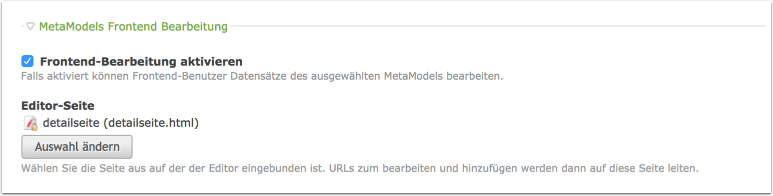
On the list page, a content element of type “Metamodel List” is used. This was configured according to the instructions — with two additions enabled by the new extension:
enable frontend editing
select an editor page
change the template to ce_metamodel_frontend_edit
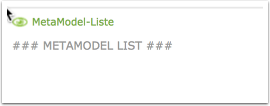
The list page with the edit links should be excluded from Contao indexing so that the crawler does not follow the edit links — especially when the “Allow deletion” option is activated for this input mask.
Note
In MM 2.3, the edit links have the HTML attributes data-escargot-ignore rel=”nofollow” so the Contao crawler does not follow the links.
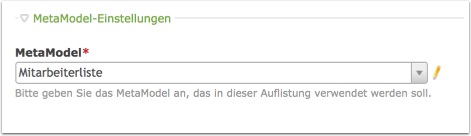
On the detail page, a new content element “Metamodels Frontend Editing” is added.

In this element, the MetaModel to be edited is selected.
As a final step, the input mask configured for the backend must be unlocked for the
frontend. To do this, open the “Input/render assignments”  page in the
backend and select an appropriate entry in the “Member group” column for frontend
permissions — please refer to the settings documentation.
page in the
backend and select an appropriate entry in the “Member group” column for frontend
permissions — please refer to the settings documentation.

The backend setup is now complete and the settings and editing of employees can now be tested in the frontend.
Warning
Assigning a member group does not automatically protect the data from being edited by other members.
Working in the Frontend
The MetaModel list now has two new options:
adding a record, and
editing a record.
For the “Add record” link to appear, the template ce_metamodel_list_edit.html5 must be selected in the MM list CE/FE module — the “Edit record” links are added via the standard list template in the “action” block.
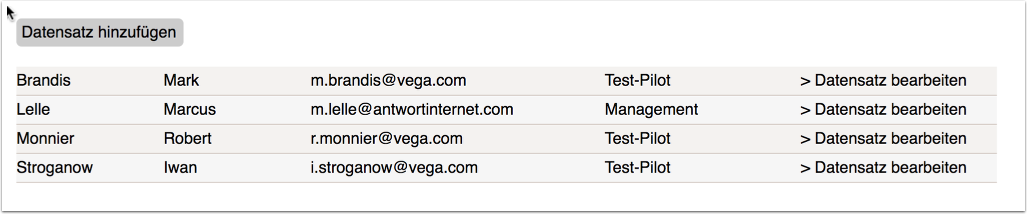
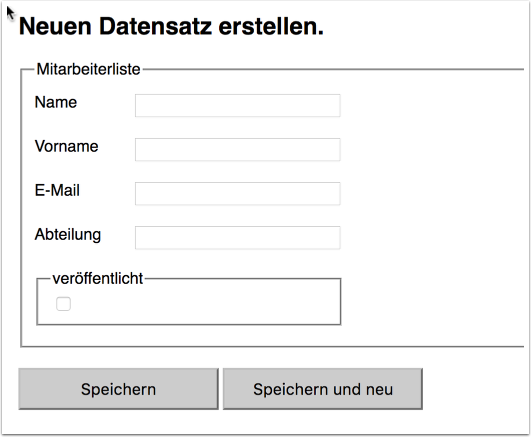
The form for creating a new record contains all fields of the MetaModel by default. After saving, the list has one more entry.
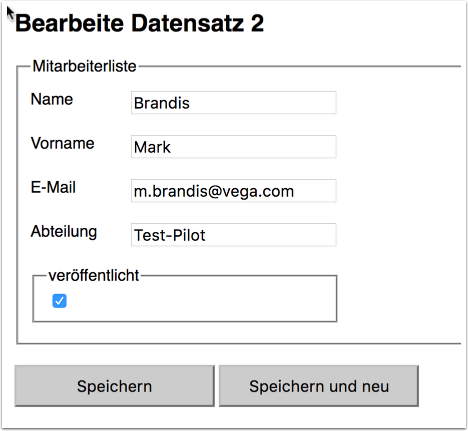
When editing a record, all fields of the MetaModel can be changed. “Save” returns to the list.
Setting Up Different Input Masks for BE/FE
If only certain fields should be available for editing in the frontend, a separate input mask must be created for this purpose.
The input mask is created in the same way as the backend mask. The form fields for editing are defined by selecting and activating the attributes.
The input mask can now be selected for the frontend via the “Input/render assignments”
.
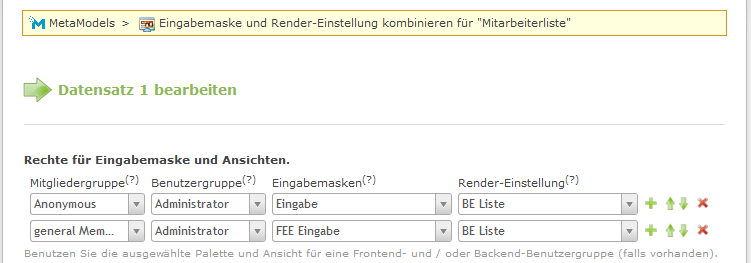
The order of the assignment settings is important, as they are processed “from top to bottom”. For example, the input mask defined for the “Administrator” backend user group is found first and displayed accordingly. For the member group “general Members”, the “FEE input” mask is found and displayed first.
The entry “*” (up to MM 2.1 “-”) for groups is a “catch all”, meaning this entry applies to all groups that have not already matched an earlier entry during processing.
Sometimes there are situations where you want to “skip” a row in a column during processing — e.g. to avoid having a “catch all *” in the first row for member groups. For this, you can create a group to which no user/member is assigned — e.g. as “Anonymous” or “empty”.
If no matching input mask setting can be found for the frontend visitor, e.g. because the page is not protected by a login or the member group is not defined in the assignments, an exception is thrown: “Definition basic is not registered in the configuration mm_xyz”.
The exception can be avoided by selecting the “catch all” (*) as the last configuration for the member group along with an “empty” input mask without permission to create or edit. A 403 error is then output, which can be caught with a corresponding Contao error page.
Customizing the Headline
Note
This feature is available from MM 2.3 onwards.
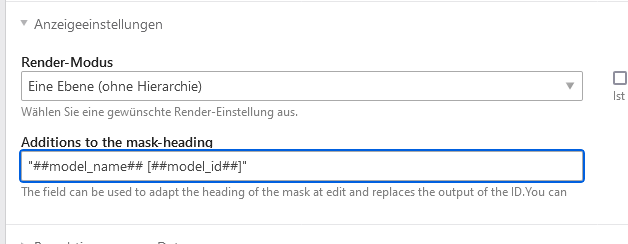
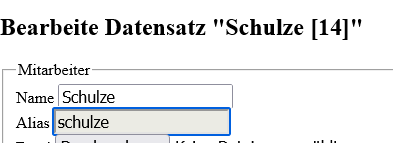
When a record is edited in the frontend, the headline reads “Edit record <ID>”. For editing members, it is not very clear from the ID alone which record is being edited. For clearer identification, it is possible to generate a corresponding text from the item’s data in the input mask settings and display that instead of the ID.
In the text field, the item’s values can be passed as “Simple Tokens”, e.g.
##model_name##.
The output customization is also possible in the backend.
Setting in the backend:
Output in the frontend:
Multilingual Support
Note
This feature is available from MM 2.4 onwards.
For multilingual MetaModels, a language switcher is rendered in the frontend input
mask, just like in the backend. The language switcher can be customized via the template
dcfe_general_edit.html5.
Note that, as in the backend, when creating a new record the fallback language must always be filled in first — the input mask automatically switches to the appropriate language.
To set a “deep link” for editing including language selection, the GET parameter
__setlng with the corresponding language code can be used, e.g.
domain.com/en/fee-processing?act=edit&id=mm_employees_trans%::42&__setlng=de — the
parameter is automatically removed after a reload.
Language indicators in the input mask
Analogous to the backend, multiple indicators for the current editing language are
shown in the frontend input mask:
In the language selection dropdown, the fallback language is marked with the suffix
[Fallback].In the headline (sub_headline), the name of the currently edited language is displayed; when in the fallback language, a colored
[Fallback]badge also appears.On each widget label of a translated attribute, a colored badge appears:
[Fallback] (orange): The value comes from the fallback language — there is no own translation in the current language yet.
[Translated] (green): The field has its own translation in the current language.

More on the topic: Multilingual Support in MetaModels.
Setting Access Permissions for Editing
In most cases, data editing should not be available to all website visitors. The detail page can be protected using Contao’s standard access permissions, and editing can be restricted to one or more approved member groups.
Note the interplay between access permissions and the rendered input mask. If the page with the input mask is protected, an input mask must also be defined for that member group. If this is not the case, it is a misconfiguration and will lead to an exception.
Extended Permission Management
With access permissions, general input mask access can be granted based on Contao member groups. More individual permissions, such as “only members of a member group may edit” (if released for multiple groups) or each member may only edit their own records, can be achieved through customization. Various events are available for this:
PreEditModelEvent: permission check before loading the input mask
PrePersistModelEvent: permission check before saving an item
PreDuplicateModelEvent: permission check before duplicating an item
PreDeleteModelEvent: permission check before deleting an item
The PrePersistModelEvent can also be used to automatically save the member’s ID or group.
Additionally, a check for login and frontend context should be performed. An “Error 403” page should also be set up for insufficient permissions.
Note
This feature is available from MM 2.3 onwards.
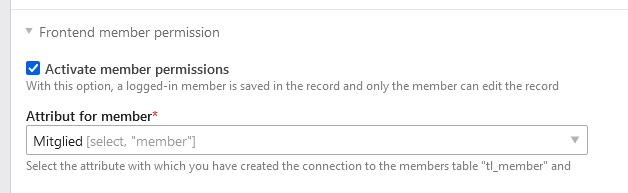
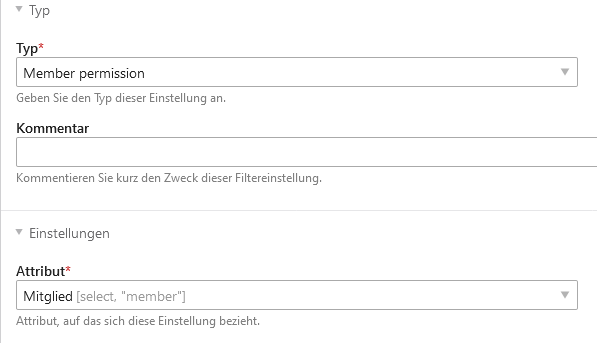
The most common check — each member may only edit their own records — is implemented in FEE. The following elements are required:
A single select [Select] attribute with a relation to the
tl_membertable and the alias set to theusernamecolumnIn the input mask for the FEE, activate the permission check and select the appropriate attribute for the member there — only single select attributes with the matching configuration are shown
Optionally, the list can be filtered to the member’s records — add the filter rule “Member permissions” to the list’s filter and select the appropriate member attribute there as well — if no filtering is built in, the action links for editing are only output for the matching items
Input mask:
Filter rule:
Custom Buttons in FE Mask
Note
This feature is available from MM 2.2 onwards.
The output and behavior of the buttons rendered in the frontend can be configured via the input mask settings. By default, “Save” and “Save and new” are rendered as buttons.
The configuration allows both the button label and the action to be changed. For example,
“Save and back”, “Save and new”, or “Save” with a redirect to a “thank you page” similar
to the form generator is possible.
The button label cannot currently be changed directly in the backend. It can either be
left empty or filled with MSC.’name’. Translation is done via an entry in the
corresponding MetaModels language file, e.g. contao/languages/en/mm_table.php.
If the entry is empty it reads e.g.: $GLOBALS['TL_LANG']['mm_table']['MSC']['closeNback'] = 'Cancel';
If defined with MSC.’name’, it reads e.g.: $GLOBALS['TL_LANG']['MSC']['closeNback'] = 'Cancel';
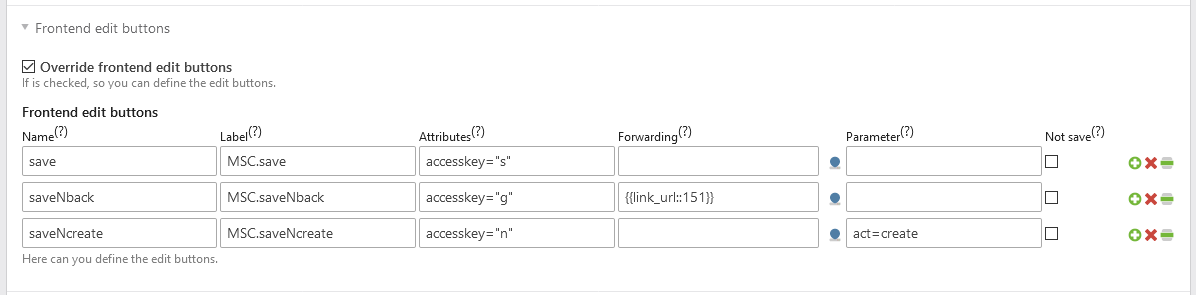
If a button is defined with the “Not save” checkbox, no data is saved. This allows defining a “Cancel” or “Back” button, for example. The HTML5 validation of required fields is bypassed via JavaScript when such a button is clicked.
In the parameter field, record values can be accessed and replaced with “Simple Tokens”.
Dynamic values can thus be included in the URL. The token format is
##model_<property-name>##. The “model_” prefix was added to allow the possibility
of including other data, such as the user’s, as well. These can be embedded as classic
GET or slug parameters:
GET: the value must start with
?, e.g.?act=edit&id=mm_test::##model_pid##results in the URLdomain.tdl/list.html?act=edit&id=mm_test::3Slug: everything must be connected with
/, e.g.pid/##model_pid##results in the URLdomain.tdl/list/pid/3.html
Note
The following support is available from MM 2.3 onwards:
An insert tag can also be entered in the parameter field — this allows further dynamic customization.

Notifications via the Notification Center
Note
This feature is available from MM 2.2 onwards — from MM 2.3, NC 2.x is supported.
If the Notification Center (NC) extension is installed, changes to a record can trigger a “notification” via the NC — e.g. sending an email.
The following triggers are available:
Create
Modify
Copy
Delete
In the NC, under the “MetaModels frontendenditing” group, a notification type is available for each trigger. For a new notification, a notification must first be created for the desired trigger.
For notification information, dedicated “Simple Tokens” with the pre-/postfix “##” are available as:
model_* — all entered attribute values
model_original_* — all previously saved attribute values (only for modify and copy)
member_* — all member data, if logged in
property_label_* — all attribute labels
data — all data
admin_email — email from the Contao configuration
E.g. ##model_name## is the content of the “name” attribute.
Once a notification has been created for one or more trigger types, it can be selected in the input mask settings.
File Upload — Optional Dropzone
No file management picker is implemented in the FE input mask, as passing data from the backend to the frontend including various permissions is very complex and any files would first need to be brought into the file manager.
However, file uploads are possible in the FE input mask. Various options are available to manipulate the target path, file name, and display after upload in the frontend.
Uploads can be done via the standard upload widget or via drag & drop using Dropzone.
For the upload, the corresponding attribute of type File (or Translated file) must be included in the mask with the widget mode set to “Single file upload”, “Multiple file upload with thumbnail preview”, “Multiple file upload”, or “Multiple file upload with thumbnail preview”.
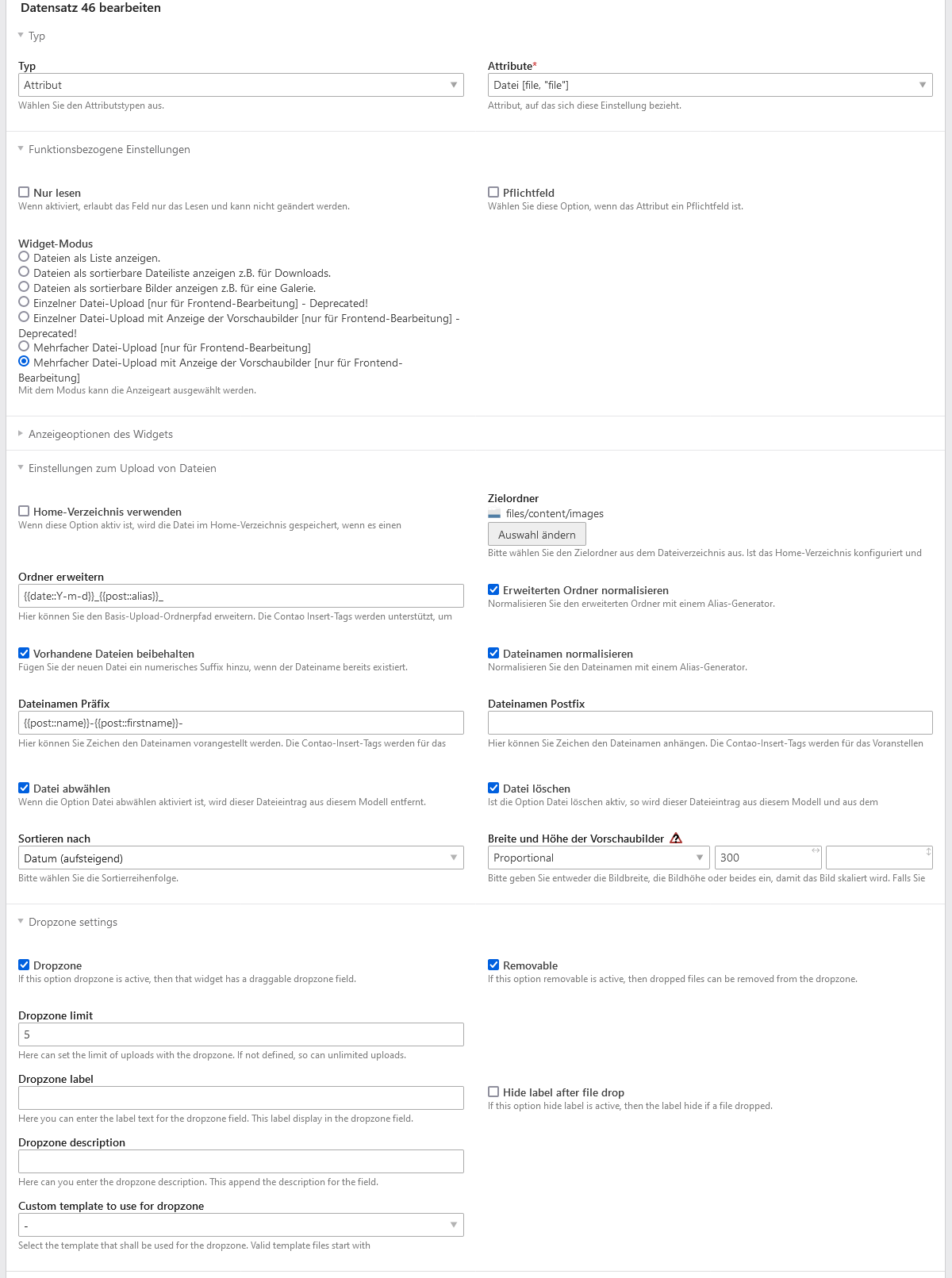
The following settings are available:
“Home directory” — target directory for logged-in members; fallback is the “Target folder” selection
“Target folder” — file storage location; serves as fallback for “Home directory” if needed
“Normalize folder” / “Normalize filename” — corresponding strings are normalized like aliases
“Extend folder” / “Filename prefix/postfix” — string customization; use of insert tags possible *
“Deselect file” — removes the file from the MM record without deleting it from the server
“Delete file” — deletes the file from the server and removes it from the MM record
“Width and height of thumbnails” — output size of thumbnails in “with thumbnail preview” mode
“Dropzone” — settings for Dropzone
Note
* From MM 2.3, insert tags are no longer resolved via the “Custom SQL” filter rule but via
standard Contao resolution; other input mask data can be accessed with {{post::<attribute-column-name>}}
Note
* From MM 2.4, the {{post::<...>}} insert tag no longer exists — POST data can now be
accessed with a Simple Token ##post::<attribute-column-name>##, e.g. ##post::lastname## —
custom insert tags are still resolved as before
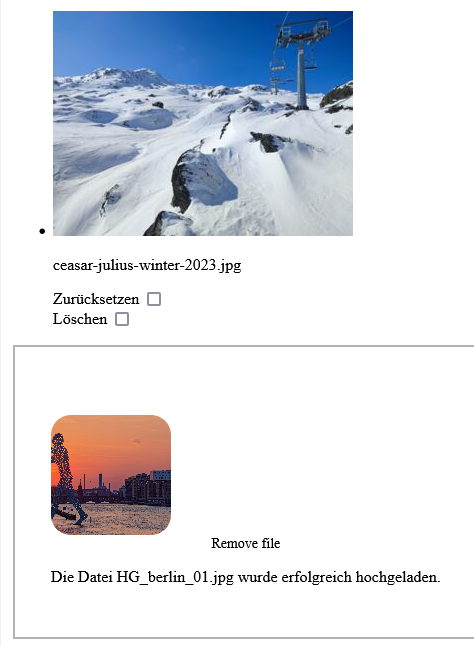
The output in the FE mask might look like this, for example: