Relations in MetaModels
One of the main tasks in MM is to create a suitable data structure through an appropriate model design. This includes separating similar values into separate models and creating relations (links) between them. This is commonly referred to as normalization in relational databases.
For example, you would not store the name of a department in the employee record. Instead, you create a separate “Department” table and store only the relation — i.e. the ID of the corresponding department record — in the “Employee” table.
This way, you can change the name of a department (e.g. Advertising to Marketing) in one place without having to change all employee records.
MetaModels provides ready-made attributes and settings for such links. The following presents these with their possible uses and special features.
For all variants, it is recommended to view the data in the database using a suitable tool like phpMyAdmin or similar.
Database Structure
The total number of MetaModels and their links create a database structure with which data can be stored, output and filtered in the desired way. Good planning can prevent subsequent changes, especially for more complex tasks.
It is recommended to record the structure of MetaModels and their links graphically. This helps both during creation and for documentation.
In the simplest case, you can sketch the schema on paper with a pen — but there are also various tools available, such as yEd or the online version yEd live.
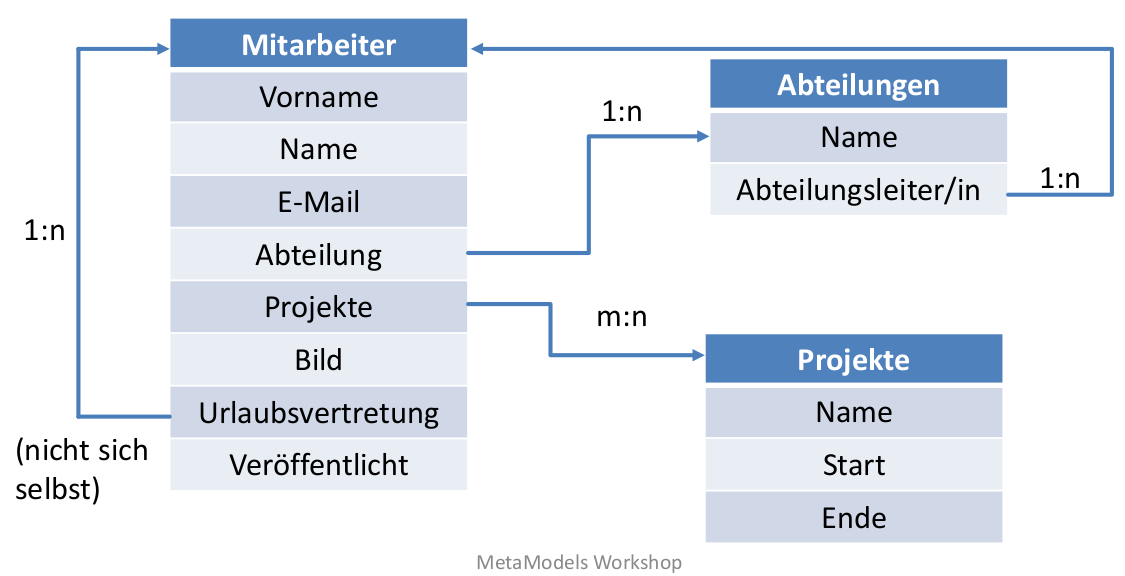
As an example, a structure for employees including links to department and projects, and a self-reference for holiday substitution:
Standard Relations
Standard relations in a relational database include single and multiple links. MM provides corresponding attributes for these, which you integrate into your base model.
You can create links both to MM tables and to all other Contao tables, such as members (tl_member) or pages (tl_pages). For links to an MM model, multilingual support is also possible — MM handles the appropriate translations.
In the frontend output, the raw node gives access to all attributes/values of the linked record
from the relation table — if this is an MM table with further relations, then also to that data
more deeply. This structure can be analyzed well in debug mode via a
dump output.
For example: if employees have a relation to a department, and the department has a relation to a department head (model “Employee”), then in a list of all employees you can output both the department name and the photo of the department head — no additional queries are necessary. The output in the template might look like:
<p><strong>Department head:</strong> <?= $item['raw']['division']['__SELECT_RAW__']['manager']['__SELECT_RAW__']['name'] ?></p>
For easy transfer of the “array path”, you can generate an output via the “Array Helper”.
In the backend, the selections of both standard relations (single or multi-select) can be narrowed via filters — for example, when selecting a holiday substitute in an employee’s input form and the list shows all employees. The selection could be narrowed to employees from the same department, excluding the employee themselves. Another example is dependent relations such as a select for country and another for state, where only the associated records are shown for states.
The “Custom SQL” filter rule is well suited for these restrictions — further tips can be found in the manual:
Single Select [Select] - “1:n”
To create a relation to a single value, e.g. employee to a department, add the “Single select [Select]” attribute to the “Employee” model and select the appropriate settings.
In the backend input form, the attribute creates a select dropdown by default — but there are also further options in the attribute settings for the input form.
Note
The “Single select [Select]” attribute can automatically work with multilingual MetaModels.
There is also the “Translated single select [Select]” attribute — this is mainly intended for connecting to tables that do not belong to MetaModels and have a separate field for the language variant — or for the special case where different items should be selected in the referenced MetaModel depending on the language.
For frontend filtering, the filter rules Single Select or Simple Lookup can be used.
See also
The full documentation of the attribute can be found at Single Select [select] and Translated Single Select [select].
Special Relations in MetaModels
In addition to the standard relations, there are further implementations in MetaModels that were implemented based on user requests.
Child Tables - “n:1”
The “child tables” relation follows the classic structure as in Contao, e.g. for news or events. Here there is a table (child) that is assigned to a superior table (parent) in its hierarchy. As an example for employees, business trips could be created as a child table. The data is typically always assigned to an employee and maintained as a standalone input list.
The relation is made via the system columns pid and id, where the pid of child records
contains the id of the parent record.
The link is configured via the input form settings by selecting “Integration: As child table” and choosing the appropriate “Parent table name” — other Contao tables can also be selected as the parent table.
Additionally, in most cases “Render mode: Parent element exists” should be selected — this creates
the desired relation from pid to id when creating a child record.
Access to the list of child records is via an icon in the parent record row in the edit icons — selecting a custom icon is optional.
When working with child tables, note that “parents don’t know they have children”, i.e. there is no automatic output of child data in the frontend. However, child records of a parent record can be filtered based on the “id-pid relation” — e.g. using the “Custom SQL” filter rule.
For filtering child records, there is also a special filter rule “Parent filter”. This allows all child records to be filtered by properties of the parent data — e.g. “Filter all business trips by employees from the Sales department”.
If a parent record is deleted, the child records are not automatically deleted as well. If you want this behavior, it can be configured — see Automatic Deletion of Records in Child Tables.
Similarly, there is no automatic copying of child records when parent records are copied. If you want this behavior, it can be achieved e.g. with the PostDuplicateModelEvent of DC_G — see “MM DeepCopy Feature”.
Please check the current state when using variants or hierarchy/tree structure in child tables (see below).
Variants
The variant structure should be used when there are deviations/variations in individual attributes for a record. An example would be a product catalog where individual products come in different or varying colors or materials, but most attributes remain identical.
To activate variants for a model, the corresponding checkbox must be set in the model. The “Variant” checkbox is then active for attributes and can be set. The checkbox should be set for all attributes that should be variant/variable — in the example above, color and/or material.
When the parent records have been filled in as usual, an additional icon appears in the backend list of records for variants to create child records. The input form for editing a child record is largely identical to the parent record’s form, but only the attributes specified as Variant are editable — all other (invariant) widgets are automatically read-only.
The special feature of variants is that all non-variant values from the parent record are automatically transferred to child records — and not just on creation, but also on changes. The child records always contain the current values of the parent record and do not need to be queried separately.
Attributes containing unique values (e.g. Alias) therefore need more attention. The uniqueness check applies to all records in the table and not just parent records. An appropriate error message is displayed for unsupported combinations of “Variant” and “Unique values”.
This two-level hierarchy is controlled by the system columns varbase and vargroup:
Parent records have
1forvarbaseand their own ID forvargroupChild records have
0forvarbaseand the parent record’s ID forvargroup
The MM API has various query options for variant types.
From MM 2.3, variants can also be used in child tables.
Hierarchy / Tree Structure
To create a tree structure like the Contao page tree, select “Render mode: Hierarchy” in the input form settings. The default sorting must also be set to “Manual”.
The relation in the hierarchical structure is built classically via id and pid, where each
lower level has the id of the superior level as pid.
If a hierarchical model is included by another model via a relation (single or multi-select), the hierarchy is not reflected in the structure of the select dropdown or checkbox list.
Models with a hierarchy/tree structure cannot (currently) be used as child tables, since pid
is used as the relation to the parent record.