Importing Data into a Spreadsheet
For analysis purposes such as graphical processing with charts or various calculations, there is sometimes a request to export data to a spreadsheet application such as MS Excel, OpenOffice Calc, or Google Sheets.
One option is to create an export of the current data in a corresponding format (XLSX, ODS, XLS) (see MM conference talk 2023).
Another simple approach is to dynamically fetch the data. For this, it is only necessary to output the data as a table and thus make it ready for import. This can be done with a dedicated frontend output page or by calling a custom route.
The corresponding applications can import this table with the data — not just once, but depending on the type also when opening the file or continuously after a specified time interval.
To prepare for the data import, the data must be output as a table. A dedicated page can be set up for this, omitting superfluous elements such as header, footer, etc. The data is output as a table via an appropriate template — e.g.
 1 <?php
 2 // templates/metamodel_pre_movies_table.html5
 3 if (count($this->data)): ?>
 4     <div class="layout_full">
 5         <table id="export">
 6             <thead>
 7             <tr>
 8                 <?php foreach ($this->data[0]['attributes'] as $attributeName): ?>
 9                     <th><?= $attributeName ?></th>
10                 <?php endforeach; ?>
11             </tr>
12             </thead>
13             <tbody>
14             <?php foreach ($this->data as $arrItem): ?>
15                 <tr>
16                     <?php foreach ($arrItem['attributes'] as $field => $strName): ?>
17                         <td><?= $arrItem['text'][$field] ?></td>
18                     <?php endforeach; ?>
19                 </tr>
20             <?php endforeach; ?>
21             </tbody>
22         </table>
23     </div>
24 <?php else : ?>
25     <?php $this->block('noItem'); ?>
26     <p class="info"><?= $this->noItemsMsg ?></p>
27     <?php $this->endblock(); ?>
28 <?php endif; ?>
No pagination should be configured in the CE/FE module MM List settings. For large numbers of records, the table output time can be improved by enabling the checkbox “Do not output parsed items via ‘$data’” or by adding an index to the MM table — more on this at Speeding Up the Backend View with Large Numbers of Records.
Data in Excel
The example file can be used
for import into Excel, or you can start with a new file. More details at
Excel.
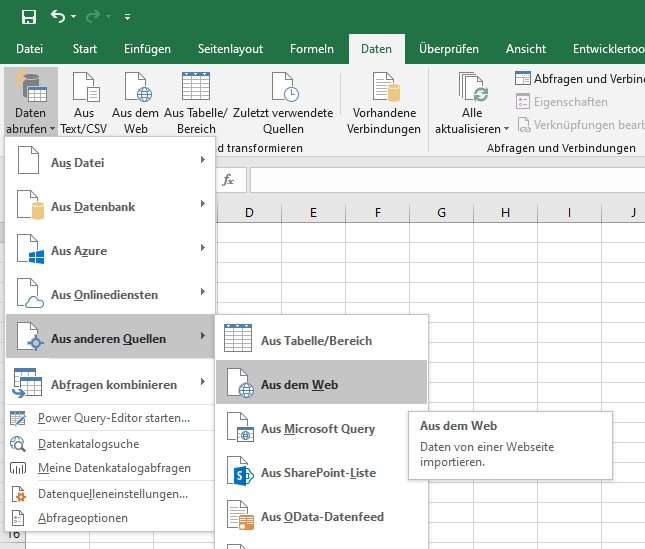
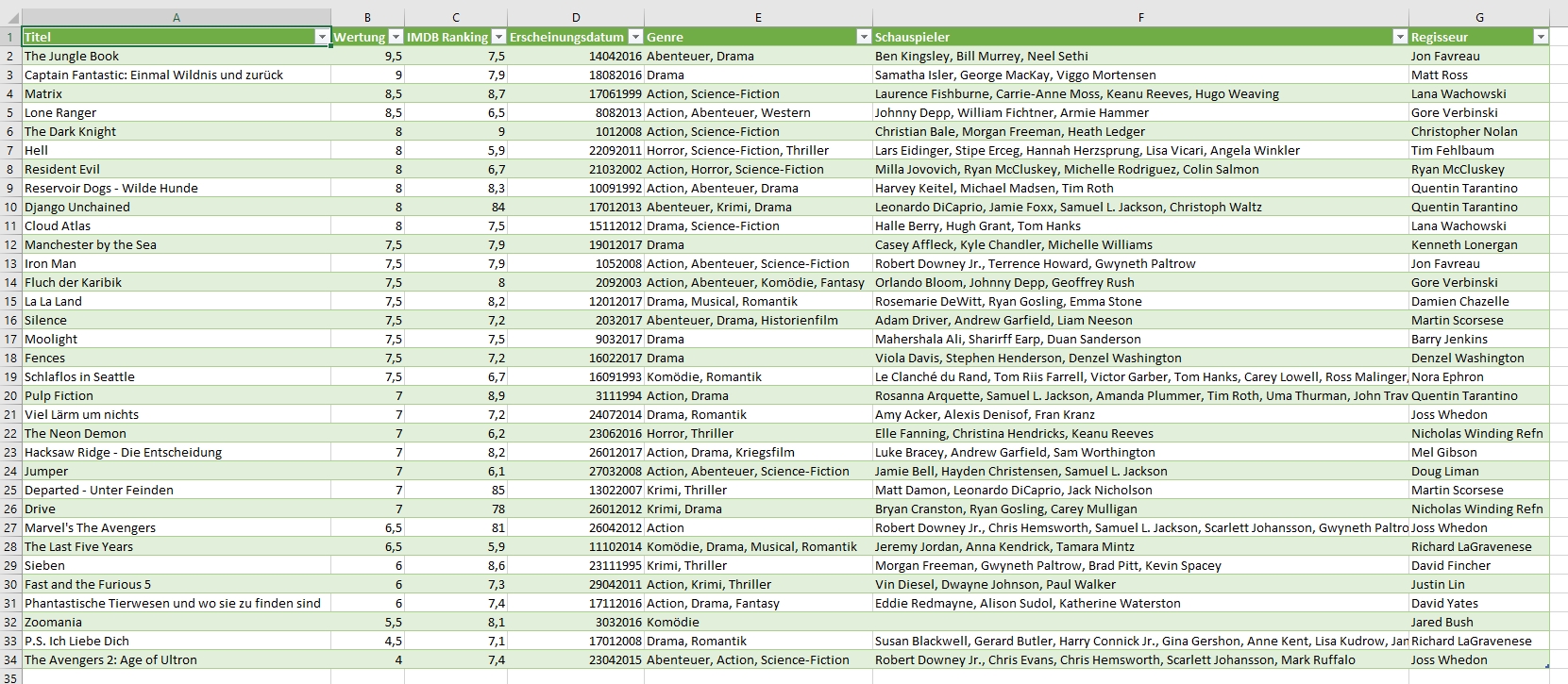
In the “Data” tab, select the web as the data source.
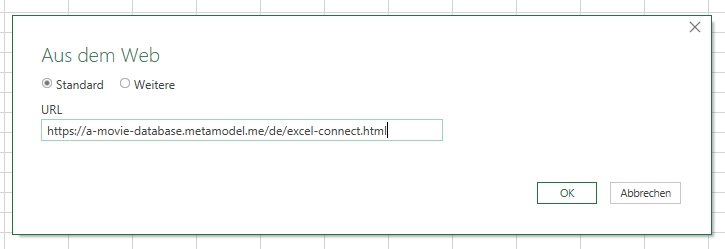
In the next step, enter the URL — in the example https://a-movie-database.metamodel.me/de/excel-connect.html.
After selecting “Anonymous” as the connection type and clicking “Connect”, a wizard appears where you can select the appropriate table.
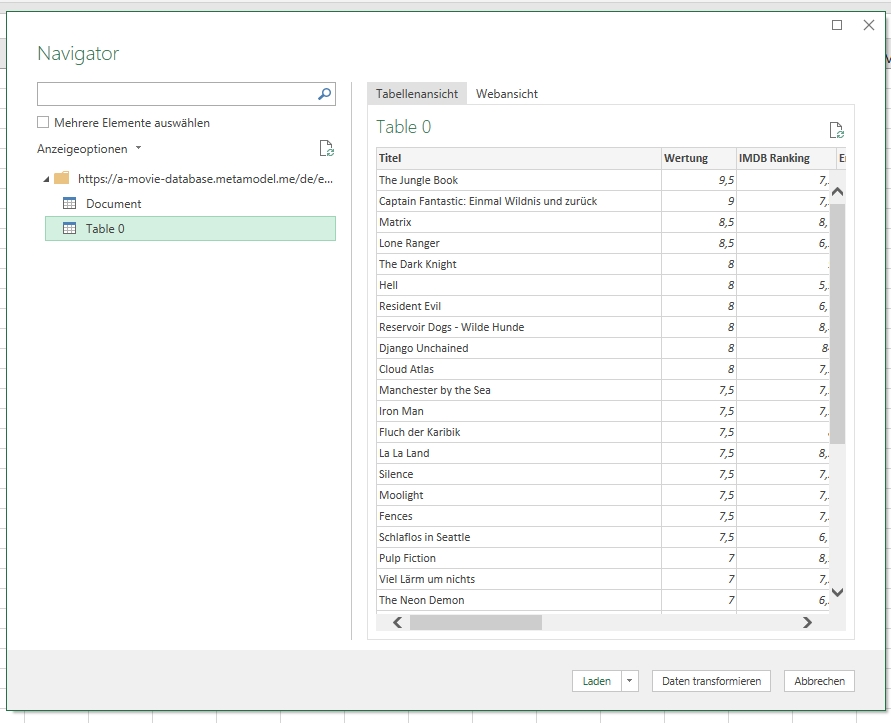
Clicking “Load” completes the settings and the data is visible.
Data in LibreOffice Calc
See the LibreOffice documentation — after entering the URL, press Enter and wait a few seconds until the HTML tables selection is populated.
Data in OpenOffice Calc
The example file can be used
for import into Calc, or you can start with a new spreadsheet.
Under “Insert”, create a “Link to External Data”.
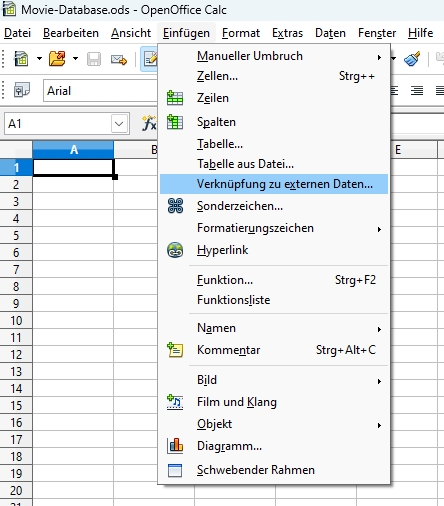
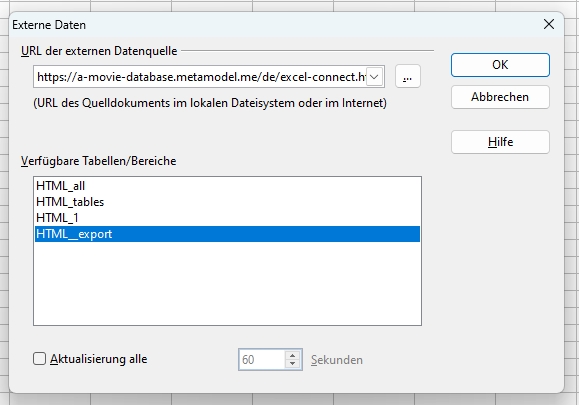
In the next step, enter the URL — if no entries appear in the “Available tables/ranges” field after entering the URL, click the “…” button and paste the URL into “File name”, then click “Open”. Then select the table “HTML_export” (table ID “export”) and click “OK”.
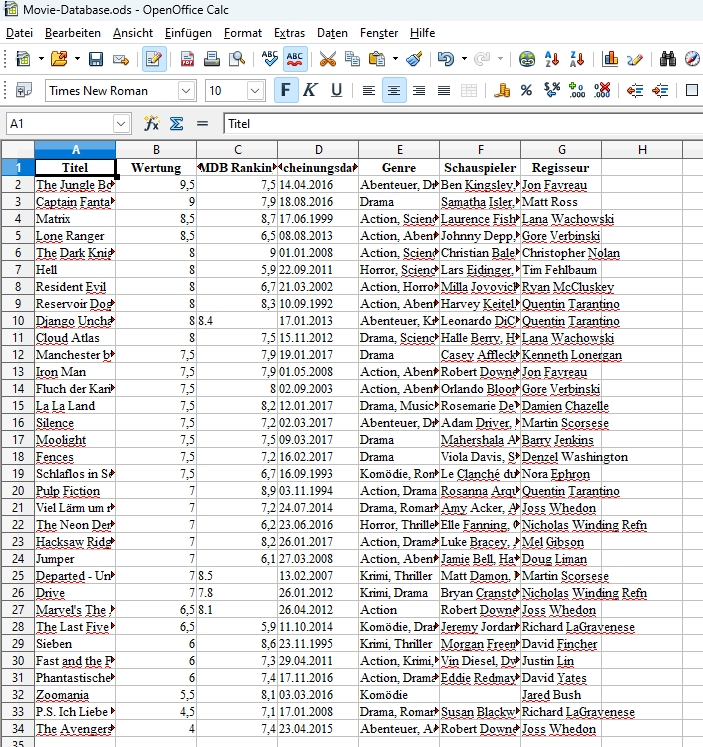
The data is then available in the spreadsheet.
Data in Google Sheets
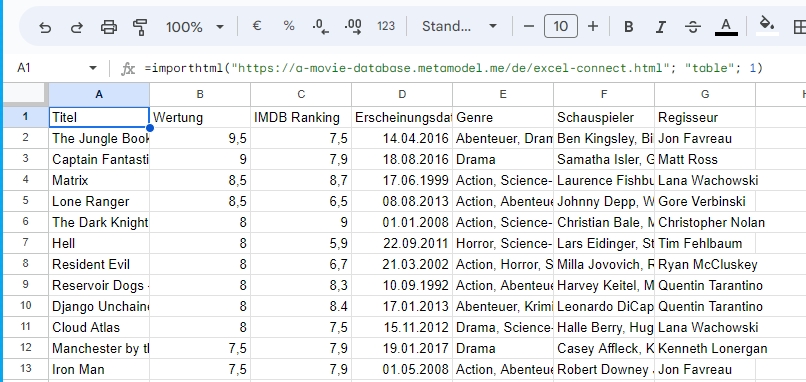
The import into Google Sheets is done via a formula — enter the following formula in cell A1:
=importhtml("https://a-movie-database.metamodel.me/de/excel-connect.html", "table", 1)
The first parameter is the URL, the second is the type, and the third is the table number (starting with 1). After entering the formula, the data is loaded.